Each Calendar Year, Medicare Drug Plans change, formularies change, prices change, rules change, and YOU change – during the annual open enrollment period, October 15 through December 7, the United States Government provides an easy and free online tool that helps you select the most cost-efficient plans with your current prescriptions. Follow these steps below each year during this time period to update your Part D Prescription Drug Plan.
TIP: Set An Annual 10/15 through 12/7 Calendar Reminder NOW (Phone/Computer/Tablet)!
STEP #1
Search www.Medicare.gov in any internet browser

STEP #2
Located at the top of this internet web page – you will see “Health & Drug Plans”. First click on “Health & Drug Plans” to make the screen drop down. Then under “Find & Compare” click on “Find health & drug plans”.

STEP #3
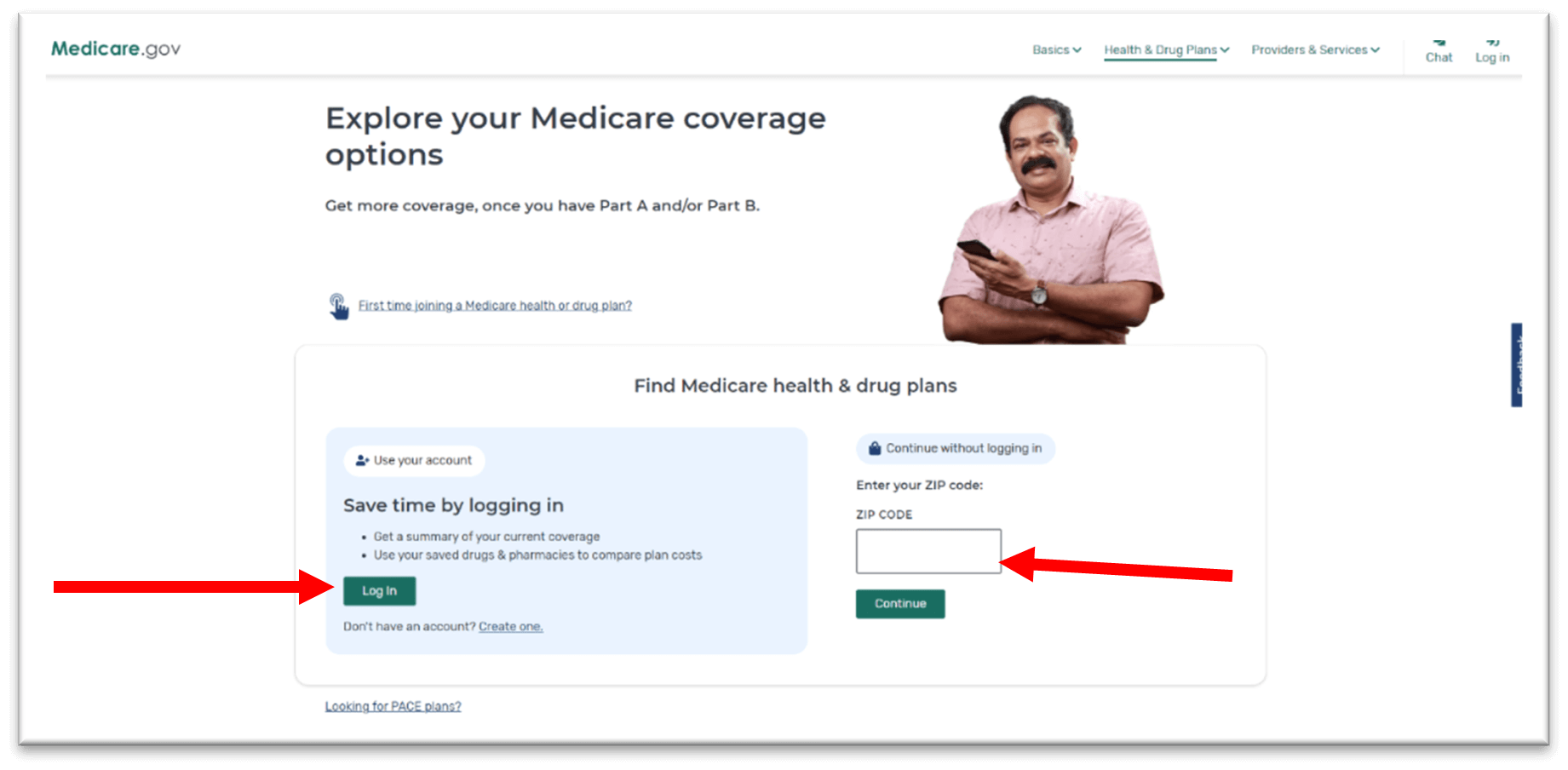
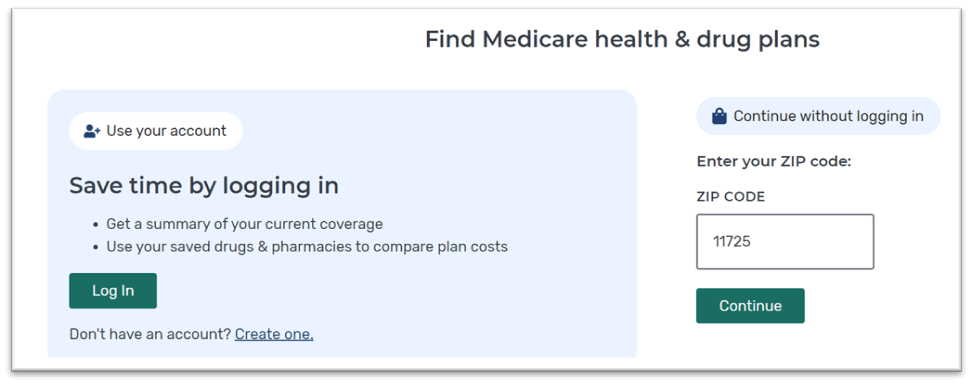
At this stage, you can either Log In using your Medicare credentials or Create An Account by clicking “Log In” OR “Create one” (an account will provide you a summary of your current coverage, allow you to add your drugs and pharmacies, and use your saved drug & pharmacies to compare coverages).
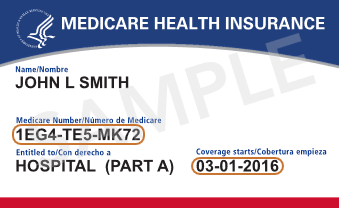
If you click “Create one” with that you’ll need your red, white, and blue Medicare Card (Medicare Number , and Part A Coverage Start Date). Since we can’t login for you, we will continue this guide as a Guest by entering our Zip Code for example. You are welcome to continue as Guest as well to compare plans, and costs and at the end can enter in your Medicare info. (TIP: Write down and save your username/password after it’s created).
STEP #4
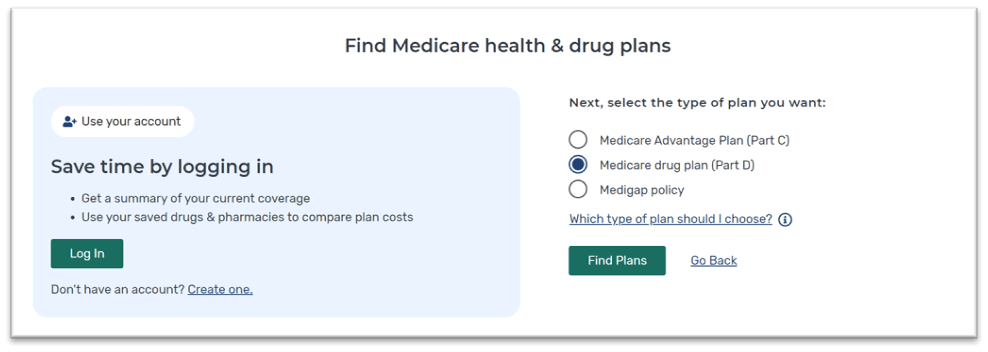
Select “Medicare Drug Plan (Part D)” under “Next, select the type of plan you want” and then click “Find Plans”. Medicare drug plan (Part D) is Medicare-approved plan from a private company that helps cover your prescription drug costs.
STEP #5
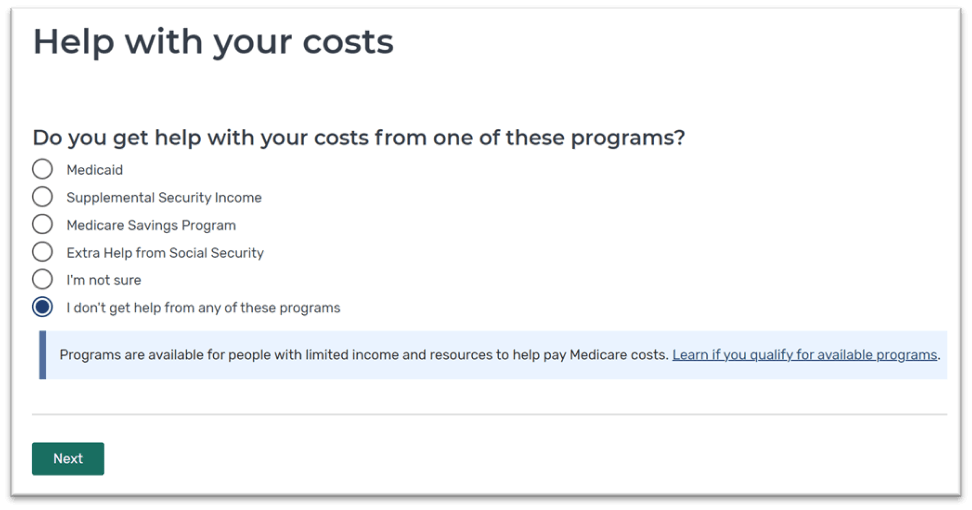
If you do not receive financial assistance from the government, select “I don’t get help from any of these programs”. You can read on the website if you qualify by select “Learn if you qualify for available programs”. If you aren’t sure, it’s unlikely you qualify with standard income.
STEP #6
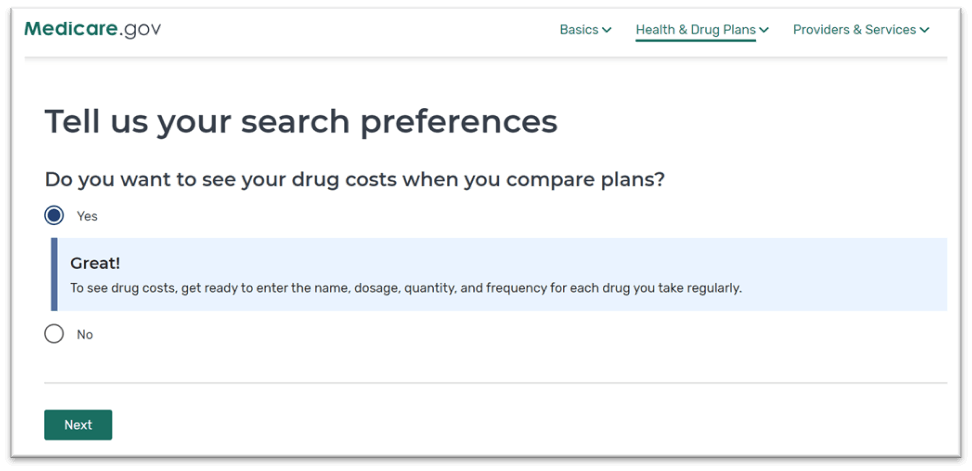
Select “Yes” under Do you want to see your drug costs when you compare plans? This way you will see the exact costs of each drug in the overall estimated plan cost.
STEP #7
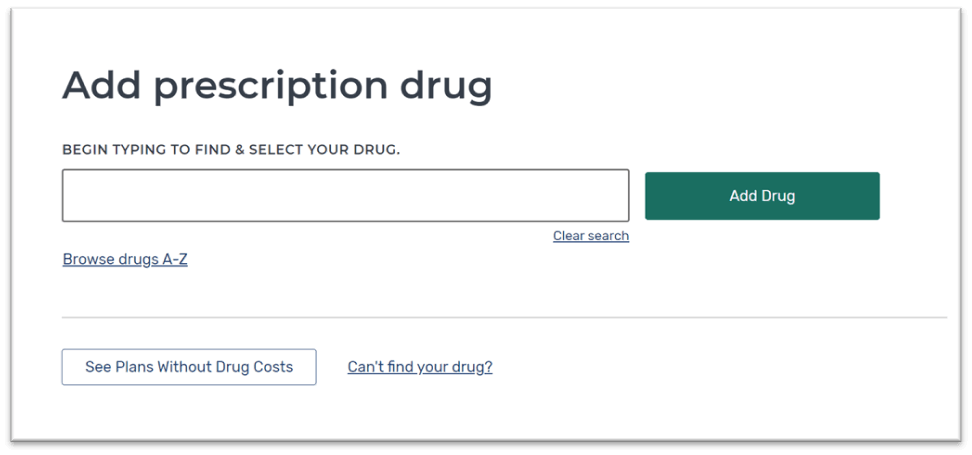
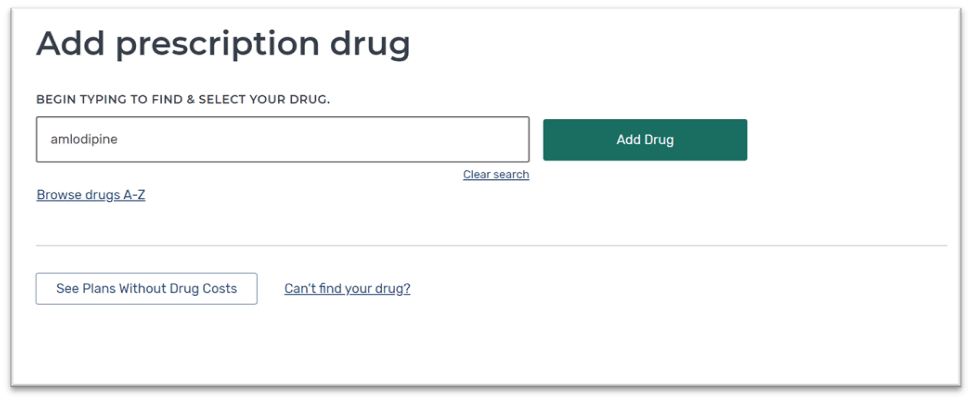
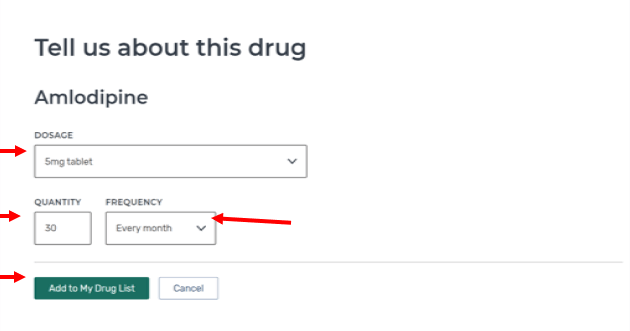
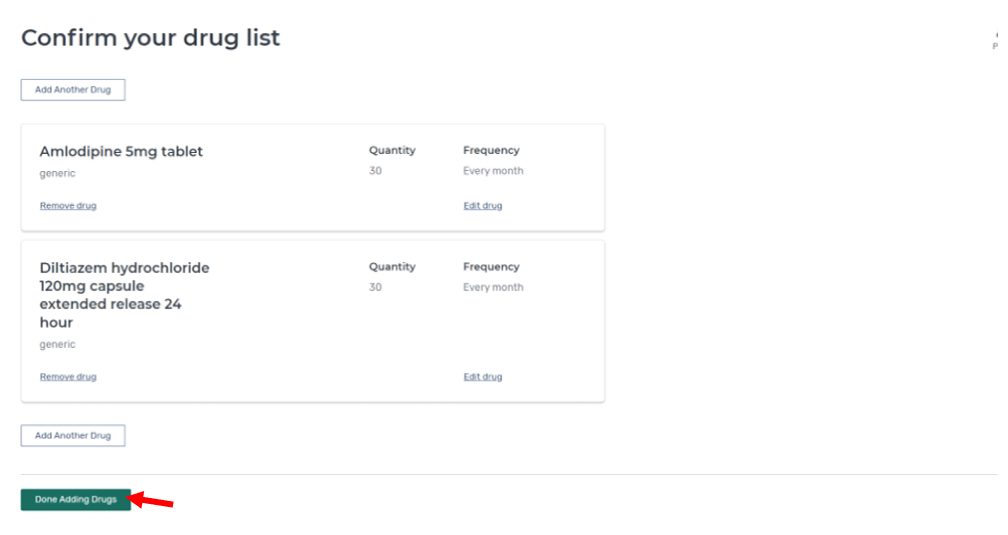
In this section, you will enter in the exact Name Of The Drug (can be brand or generic, let it populate, and click “Add Drug”. It will prompt you to enter Dosage (mg), Quantity (amount in each fulfillment) and Frequency of fulfillment order (monthly, bi monthly, semi annually etc.). When this info is correctly entered, select “Add to My Drug List”. REPEAT STEPS UNTILL ALL DRUGS ARE ENTERED.
Below is for example only.
STEP #8
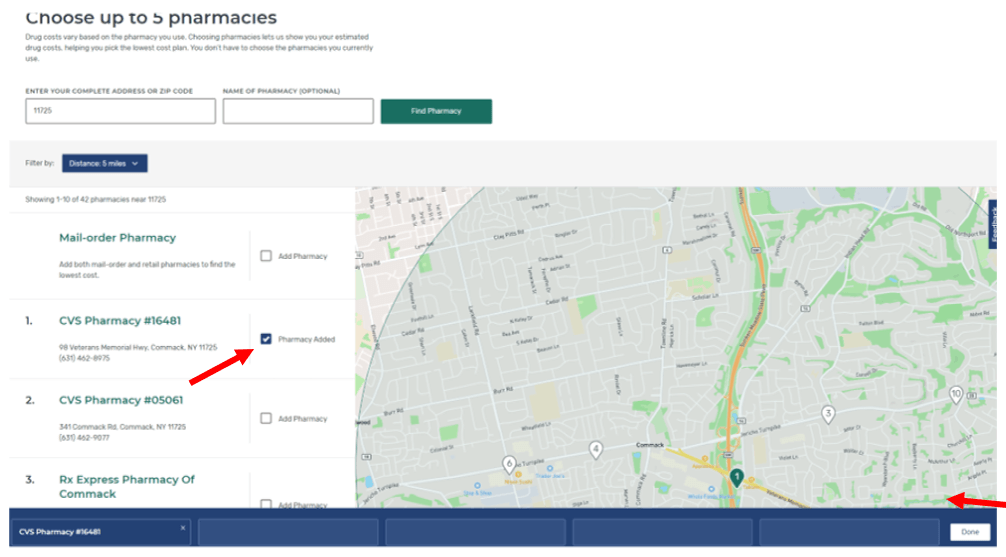
Enter in your zip-code to find your closest or preferred pharmacy. When this populates, click the box to check off the pharmacy(s) of choice. Lastly, select Done on the bottom right of the screen.
STEP #9
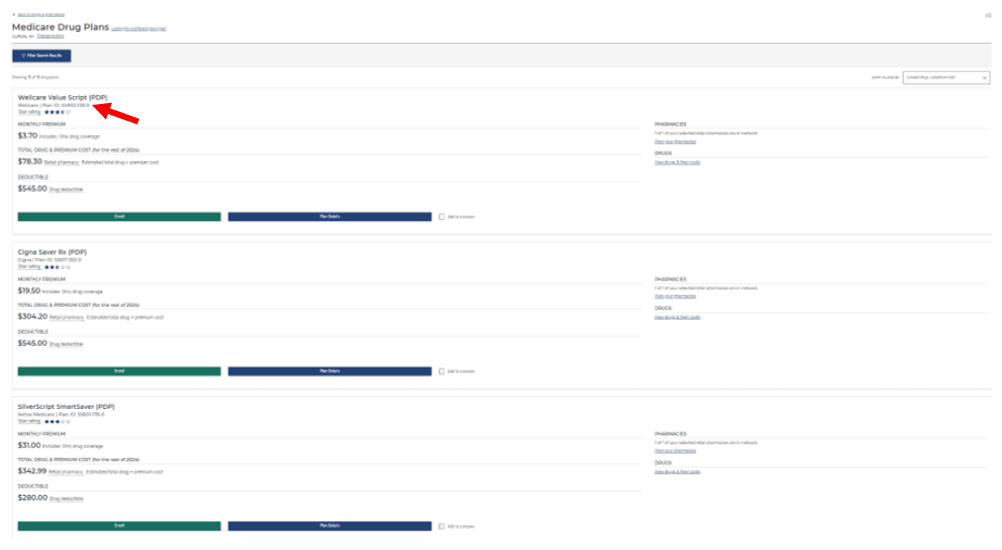
At this stage, Medicare.gov, has provided a list of the most comprehensive and economical plans for your current prescription needs for remainder of the year for new enrollees, or upcoming Calendar Year for existing Medicare members/Part D Drug Plan Users.
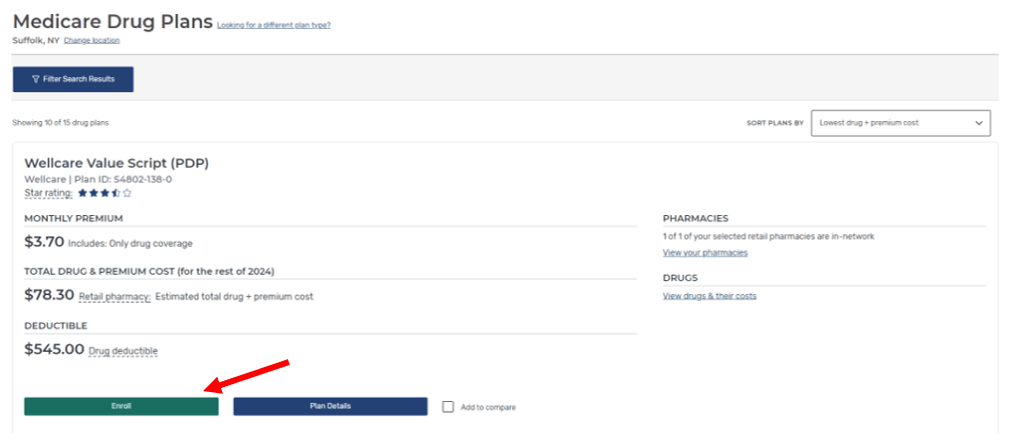
- The plan on top of the page, is typically the government recommended plan based on price, and your specific drug needs/usage.
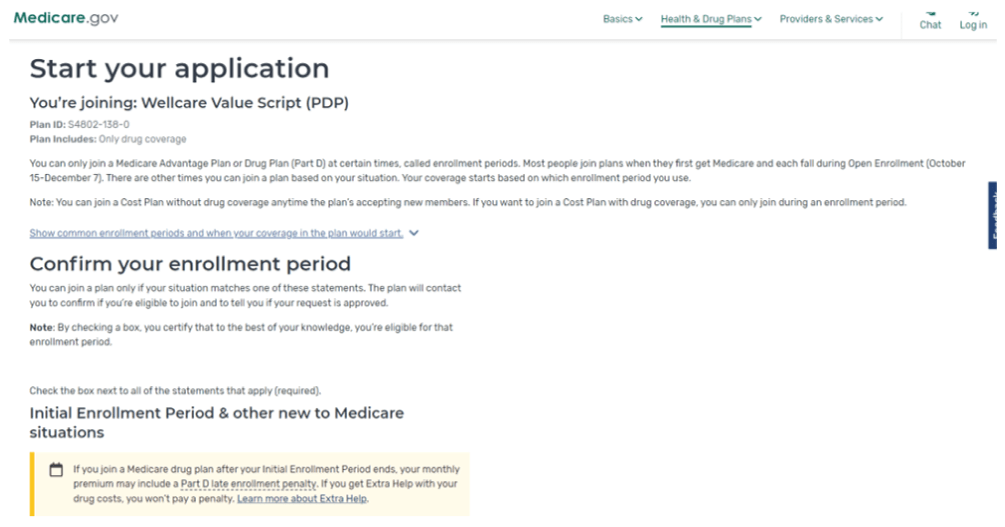
- When ready to Enroll – Select “Enroll” and be ready to provide Your Medicare #.
- It will take you to the START YOUR APPLICATION page – where you will complete your enrollment. You will be physically mailed, and emailed your Part D Drug Plan Card/Info. Download The Carrier App to have access on your cell phone as well.